Doors
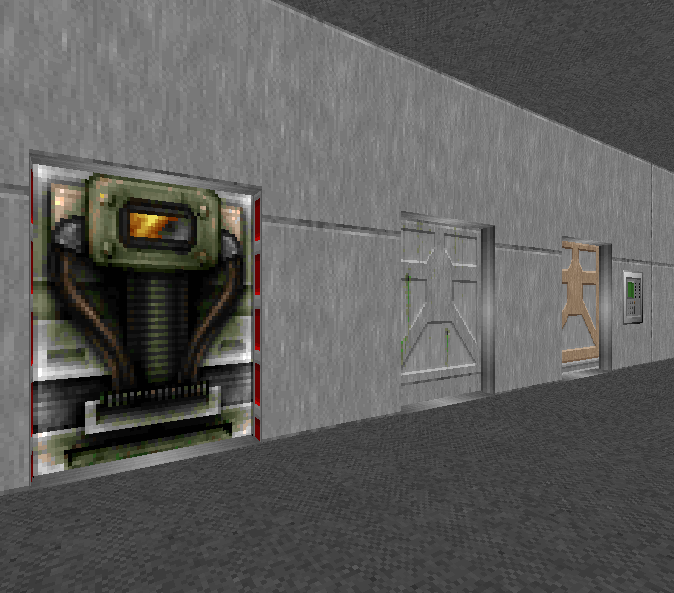
Manual, remote and locked doors.
Note
Door textures come in two sizes: 64 and 128. When making your doorway, opt for a passage width to match.
Building a door
Use this method to make a basic door. It can be used as a base for a manual or a remote door.
Join two sectors together with a passage
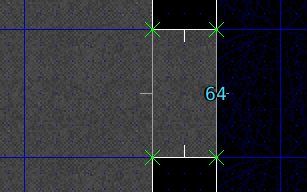
Increase the grid detail as needed by pressing 3-5
Enter vertices edit mode (v)
Add vertices for the door inside the passage
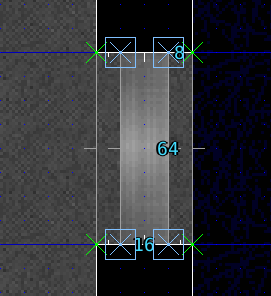
Enter Linedef edit mode (l) and select the front/rear sides of the door
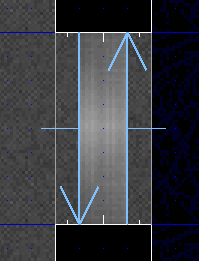
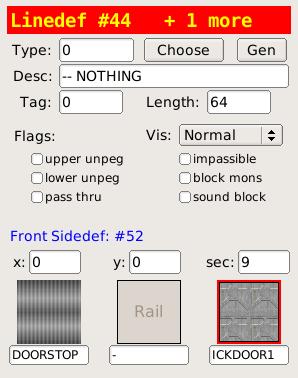
The door raises into the ceiling, set the front upper Sidedef texture to the ICKDOOR1 texture.
Enter sector edit mode (s) and select the door sector
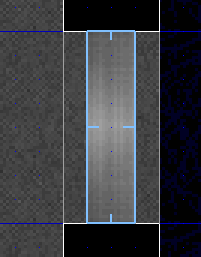
Lower the ceiling all the way to the floor so that the door is closed. Use the Ceiling +- buttons or the [] keys.
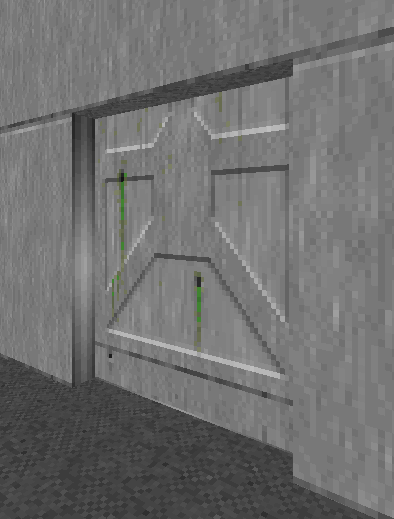
Manual Doors
Manual doors open when the player performs the USE action on the door.
Enter Linedef edit mode (l)
Select both Linedefs of the door
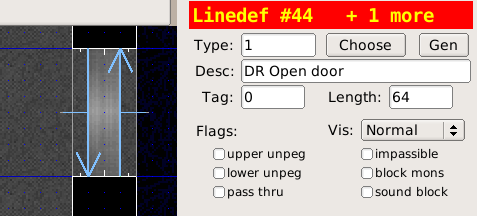
Choose the Type of the Linedefs as 1 DR Open Door
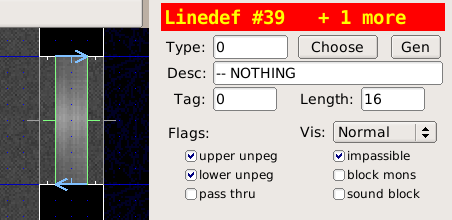
To make the door open on a fixed track (the sides stay still while opening and closing):
Select the track Linedefs
Check the upper unpeg and lower unpeg options
Note
The door line specials indicates that the sector facing the back of the Linedef is a door, this special does not need a tag either.
The DR special can be opened repeatedly, while D1 can only be opened once.
Locked Doors
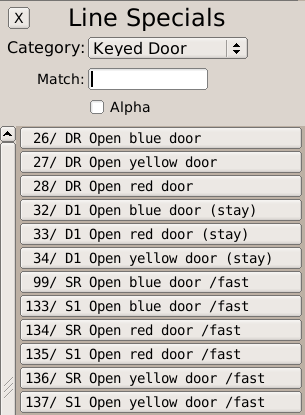
Doors that require a blue, yellow or red key to open are created similarly to manual doors. When choosing the door Linedef type, pick one of the specials that target the keys:
Remote Doors
Remote doors are opened through a switch.
Enter Vertice edit mode (v)
Use the LMB to insert vertices along the wall, make the Linedef 64 units long
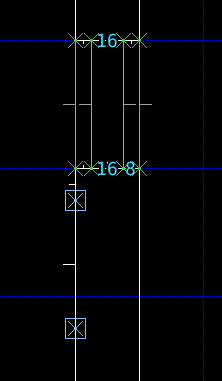
Enter Linedef edit mode (l), select the new Linedef
Choose the SW1GRAY switch texture
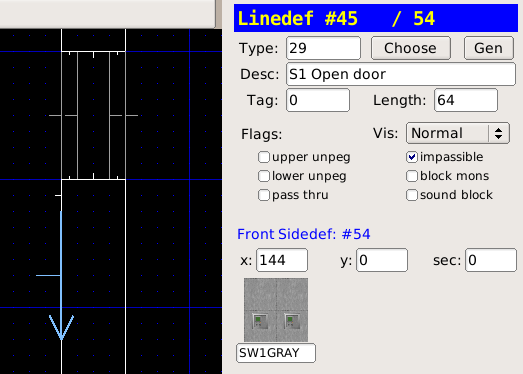
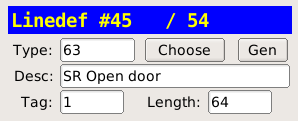
Choose the Linedef Type as 63 SR Door Open
Move the mouse cursor over the grid to ensure focus is not stolen by the Line Specials panel
Press ; then f to apply a fresh tag to the Linedef
Enter sector edit mode (s), select the door sector
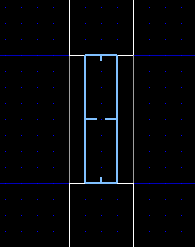
Press ; then l to apply the last tag to the door sector
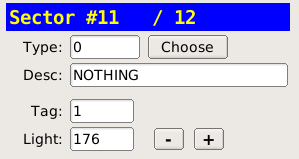
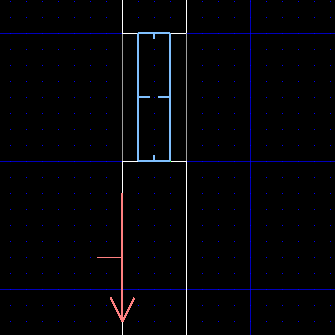
Eureka highlights both the sector and the Linedef that share the same tag. This shows us the two are linked:
Note
The SR line special indicates a switch that can be toggled repeatedly, while S1 is a switch that can only be toggled once.